Creating or Editing Alarm Log Entries
Each Alarm log entry for the selected gas (meter or station) or liquid device Node and time period is shown on the control grid, and can be used as a vehicle for viewing, creating, or editing* alarm state configurations for selected alarm log records. Changes made to alarm log data are historized in the CygNet Measurement system when they are saved.
*Note: Editing functionality is only available in systems licensed for FULL mode.
You must have proper security authorization to edit alarm log records. See FMS Security (and DEVALA security event) for information about configuring security access for alarm log records.
Viewing Alarm Entries
Use the Alarm control to view Alarm log entries.
To View an Alarm Log Entry
- Set the session Node and time window options using the control Chooser and Options panes.
- On the control toolbar, optionally click Configure filter to access the Configure Filter dialog box to filter the alarm records displayed. Click the check box(es) to select/clear what alarm log records to view. Options are Entry and/or User data sources. Default value is both selected. Click OK to save the filter.
- The device-specific Alarm Log records will appear in the control grid, for the selected Node and time window, showing the alarm date/time, the source of the alarm, the alarm state value for each alarm type listed, and the edit state of the record you are viewing.
- To access the option to customize which columns are currently displayed in the grid, right-click on the header row and then click Field Chooser to display/hide the Field Chooser list, to select/remove columns for display. See Using the Field Chooser for more information.
Creating New Alarm Log Entries
To Create a New Alarm Log Entry
- Create a new alarm log entry by doing one of the following.
- Right-click in the blank space of the data grid, and then click New to create a new entry.
- Right-click on an existing data row, and then click New (copy) to create a new entry of the same type as the selected alarm log record. When the new alarm log entry is created in this manner, it will default to the values in the existing entry selected.
- The Alarm State Editor dialog box will appear.
|
Alarm State Editor |
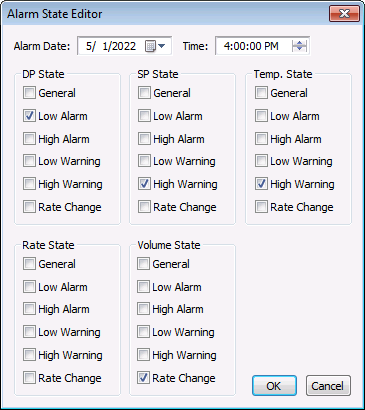
- Enter the applicable alarm state value(s) for the alarm log entry. Alarm types within an entry include DP (differential pressure), SP (static pressure), Temp. (temperature), Rate (flow rate), and Volume (volume).
For each alarm type, possible alarm state values are as follows.
Alarm State Description GA General Alarm LA Low Alarm HA High Alarm LW Low Warning HW High Warning RC Rate Change
- Click OK when data entries are complete.
Editing Alarm Log Entries
Note: The dialog boxes used when editing alarm log entries contain the same properties as those used when creating new alarm log entries.
To Edit an Alarm Log Entry
- Double-click on an alarm log data row, or right-click on the row and click Edit, to access the Alarm State Editor dialog box.
- Enter the data change(s) for the applicable alarm log entry. Alarm types within an entry include DP (differential pressure), SP (static pressure), Temp. (temperature), Rate (flow rate), and Volume (volume).
- Click OK when all changes are complete.
Saving Changes
When you Save changed records in the Alarm control, you access the Save Changes dialog box to generate a record of the change.
Multiple edits can be performed at one time, and will generate a single command log and audit history record when you save the edits with a single Save action. When saving edits to multiple records, either all edits will be saved successfully or, if there are errors, no edits will be saved.
To Save Changes
- Edit the desired values.
- Once values have been entered or changed for all desired records, click Save to write the new values and historize the changes. The Save Changes dialog box will appear.
|
Save Changes |
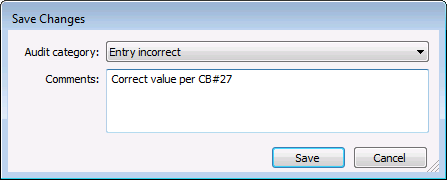
- Select an Audit category from the drop-down menu, for auditing purposes. The Audit Category selections are listed as configured on the Administrative Options page, for the category type Data Change. See Configuring Audit Categories for more information about audit categories. See Auditing in CygNet Measurement for more information about the auditing process.
- Optionally, type Comments into the text box to explain the change. Maximum character count is 140. Although comments are optional, the comment becomes part of the audit record and can be helpful to identify the context for the change when auditing or reviewing records later.
- Click Save to save the record change(s), or click Cancel to abandon the change(s).


